How to use and troubleshoot Flight Mode on your Galaxy Device
Activating Flight Mode (also known as Airplane Mode) disables your device's radio-frequency signals - including cellular data, voice calls, and basic wireless connections - allowing you to comply with airline regulations during travel.
Use this guide to learn how to quickly toggle on Flight Mode and keep essential connections active while flying.
Please Note: This guide is designed for Australian variant devices, if you have an international device and require further support click here to get in touch with your Samsung subsidiary.
How to turn Flight Mode On or Off
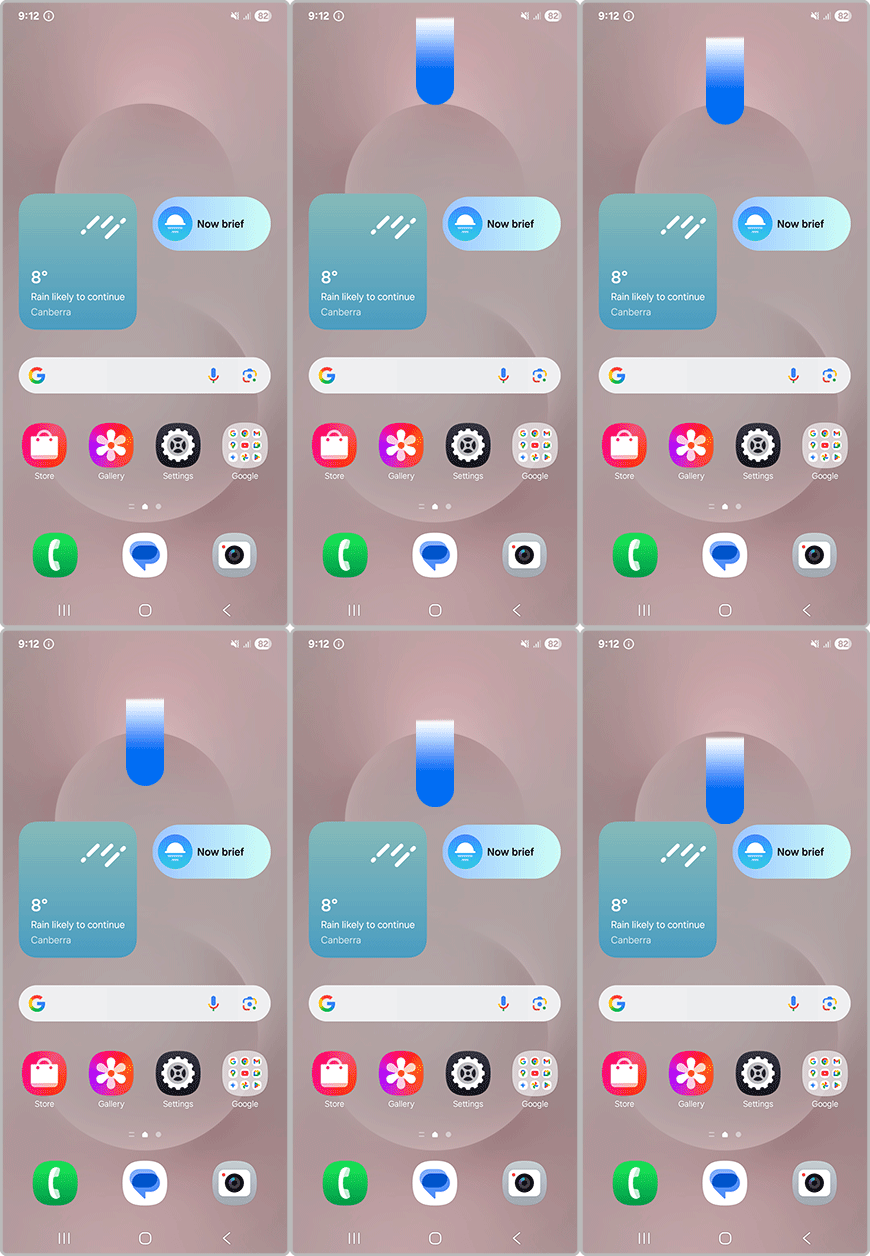
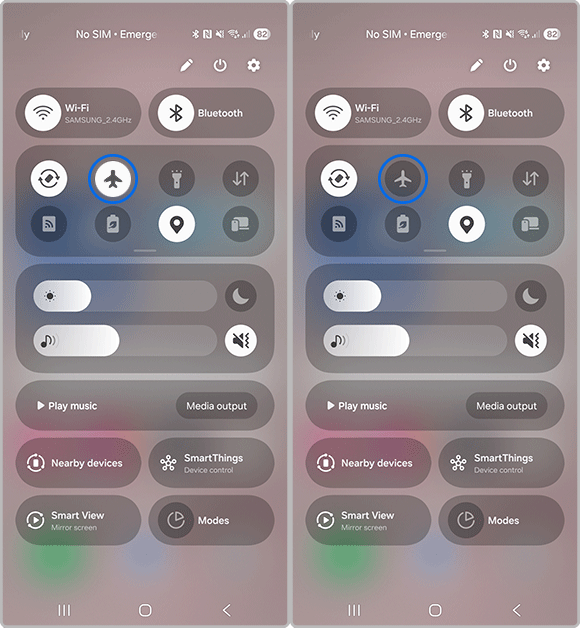
Using Wi-Fi and Bluetooth while in Flight Mode
Enabling Flight Mode automatically turns off mobile data, Wi-Fi, and Bluetooth by default. However, modern Galaxy devices let you turn Wi-Fi or Bluetooth back on independently while keeping cellular network transmission safely disabled.
- In-Flight Wi-Fi: Once Flight Mode is active, open your Quick Settings and tap on Wi-Fi to reconnect to an airline's onboard internet network.
- Wireless Headphones: Open Quick Settings and tap Bluetooth to pair your Galaxy Buds or wireless headphones to enjoy saved media or in-flight entertainment.
For further assistance, please contact our Chat Support. To find your Samsung product's User Manual, head to Manuals & Downloads.
Thank you for your feedback!
Please answer all questions.
Contact Info
Contact us
WhatsApp
![]()
![]()

