How do I save high-quality photos from a video on my Galaxy device?
Last Update date : Oct 29. 2026
Turn your favourite video moments into brilliant, high-resolution photos. With the native Video-snap tool in the Samsung Gallery app, you can extract sharp, full-resolution still images directly from your recorded footage.
Please Note: This guide is designed for Australian variant Galaxy devices, if you have an international device and require further support click here to get in touch with your Samsung subsidiary. These steps are designed for Galaxy devices with Gallery App versions 12.1.04.6. and above.
1
Launch the  Gallery app
![Launch the Gallery app]()
 Gallery app

2
Tap on the video you would like to capture the snap
![Select Video]()

3
Begin zooming in the video to find your preferred frame
![zoom into video and stop on the frame you would like to capture]()
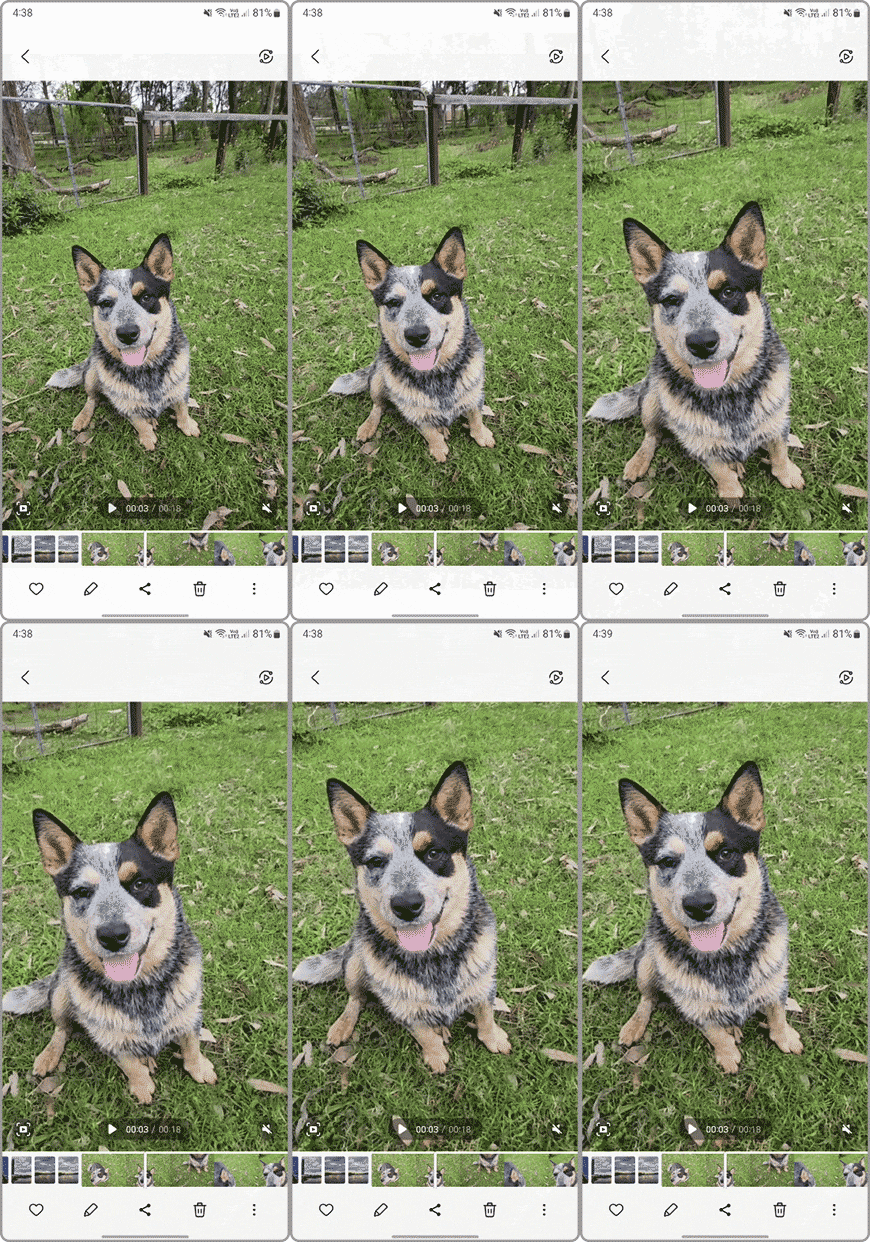
4
When you are ready to capture your preferred frame tap on 
![tap on the capture frame button]()

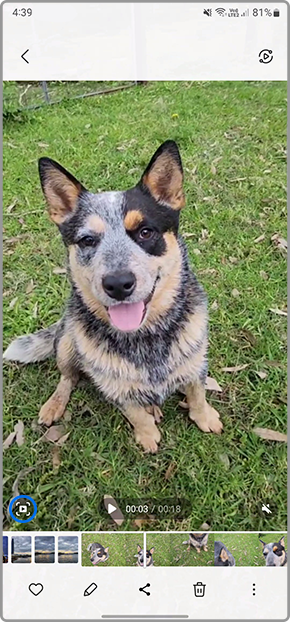
5
Once the frame has been taken tap on the preview window located on the bottom left of the screen to view your newly captured image
![tap on capture frame to view]()
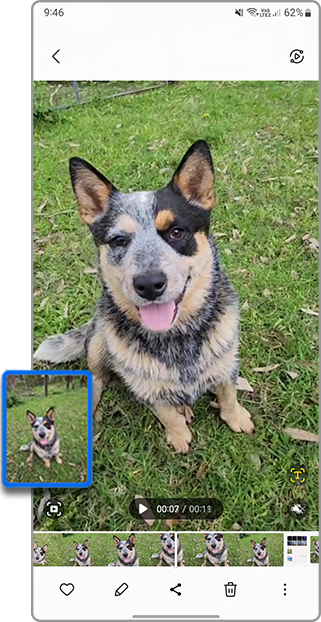
6
You will then be able to view the captured frame within the Gallery app
![Viewing captured image]()
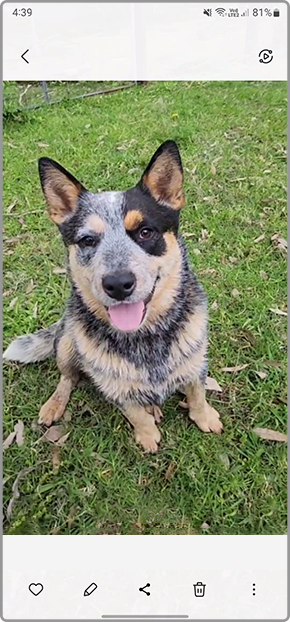

Thank you for your feedback!
Please answer all questions.
Contact Info
Contact us
For support buying a product, help with an order or technical product support
WhatsApp
![]()
![]()


It's now even easier to get in contact with Samsung Customer Care, now on WhatsApp.
Troubleshoot and book a repair
Support for your mobile devices, home appliances, TV and computing products