Updates to Game Booster settings and features on the Samsung Galaxy devices
Galaxy devices running One UI 7 or above include several updates to Game Booster settings and features, such as where to go to set the game performance level or customise individual game settings. This guide will help you to navigate these changes.

Note: Updates may vary by software version, device model, region, etc.
Setting up Game Mode
The ability to mute calls and notifications while gaming, which was previously available through Game Booster Priority mode, can be set up using Modes and Routines. Creating a Game mode gives you more configuration options, including Do not disturb, to help you stay focused on your gaming experience.
Step 1
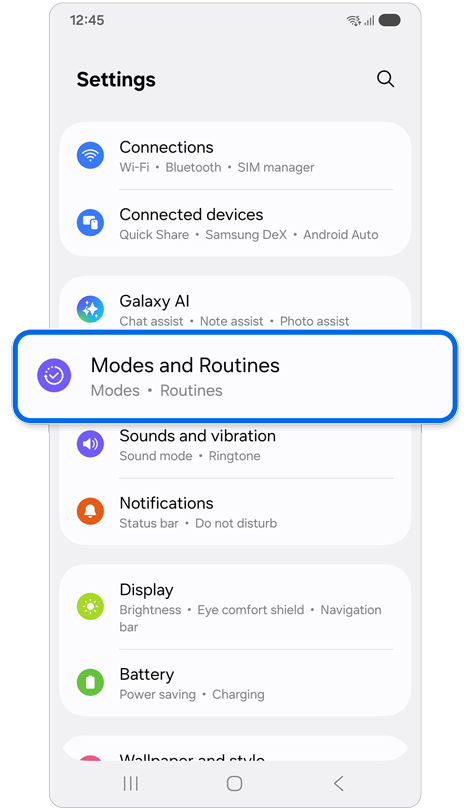
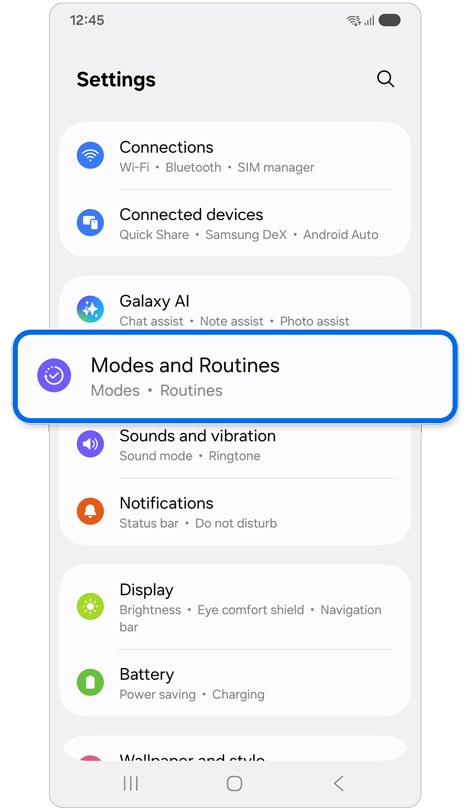
Open Settings > Tap Modes and Routines.
Step 2
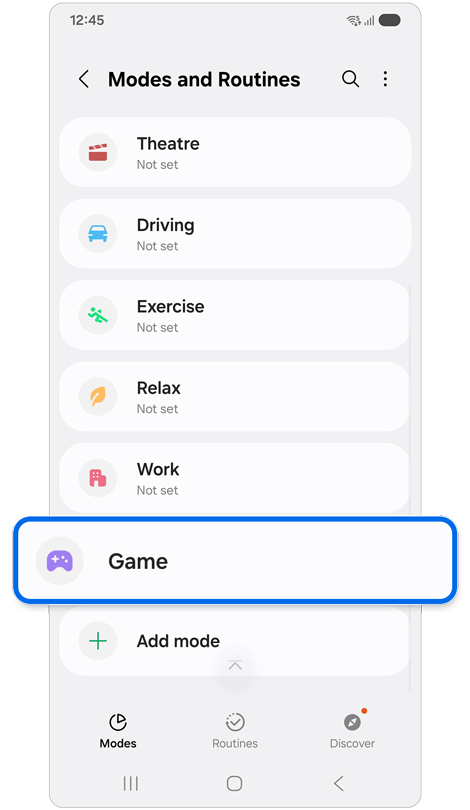
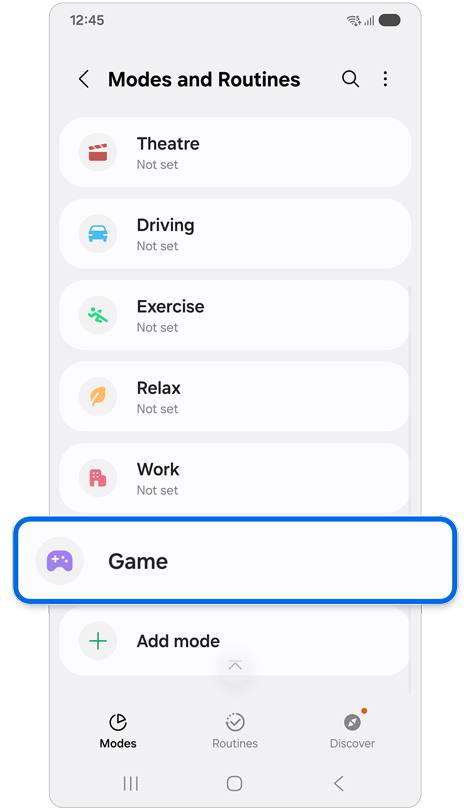
Choose Game from the options.
Step 3
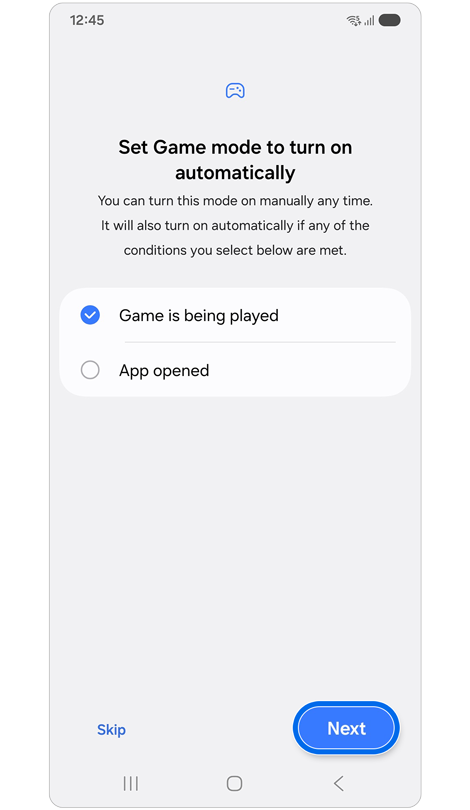
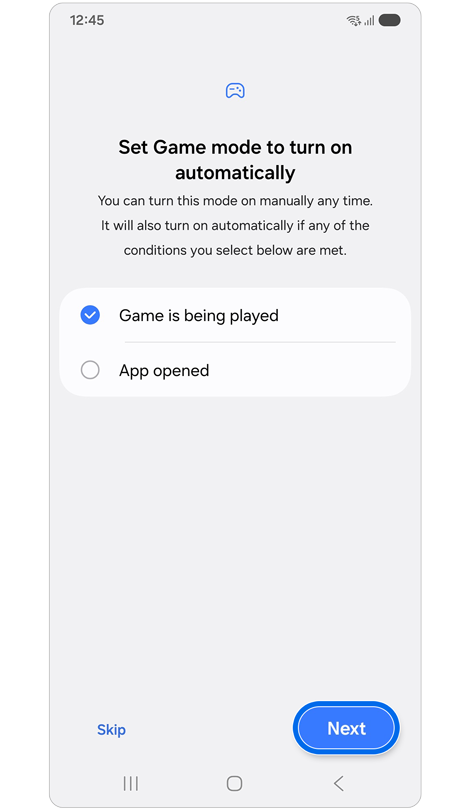
Select when you’d like Game mode to turn on automatically > Tap Next.
Step 4
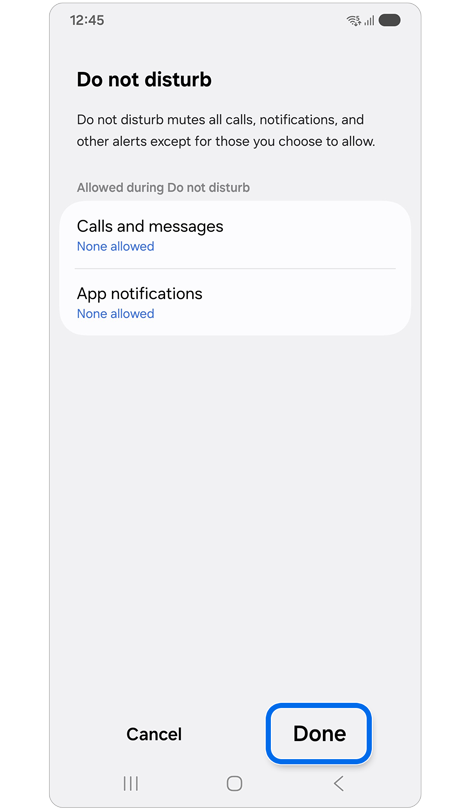
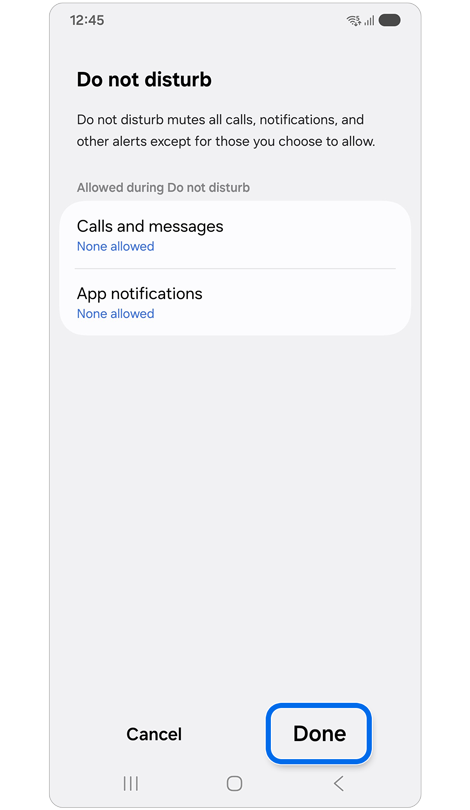
Customise your Do not disturb settings > Tap Done.
Step 5
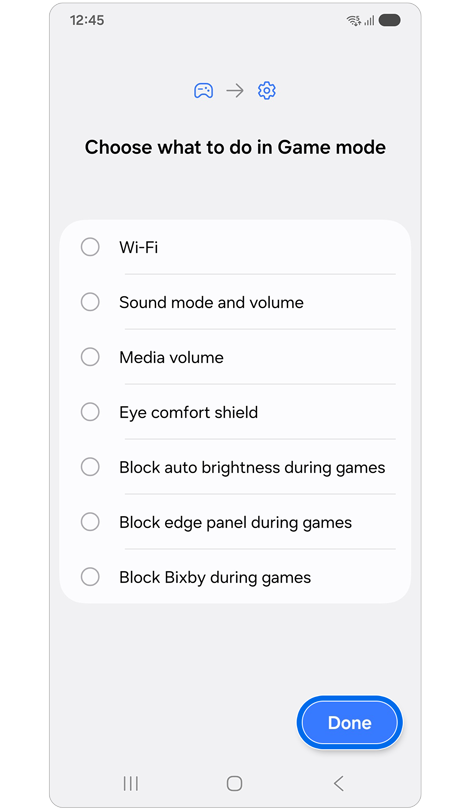
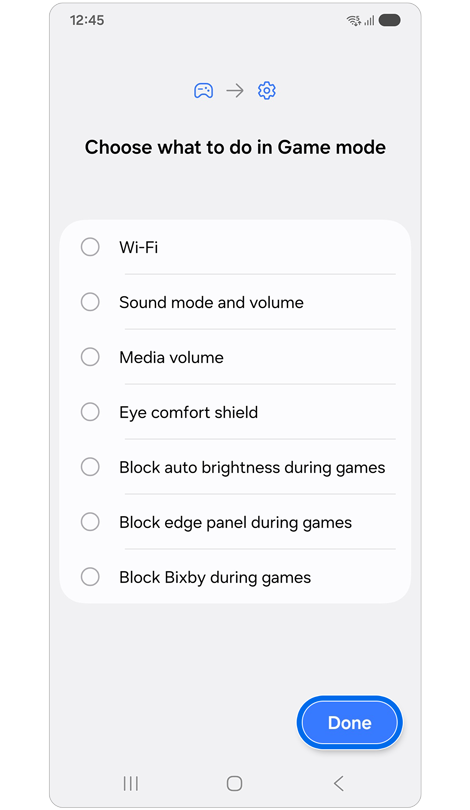
Select other actions to activate > Tap Done.
Step 6
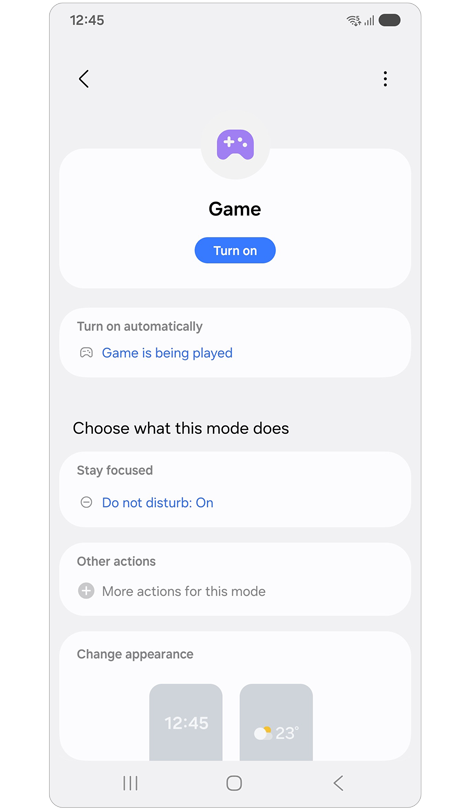
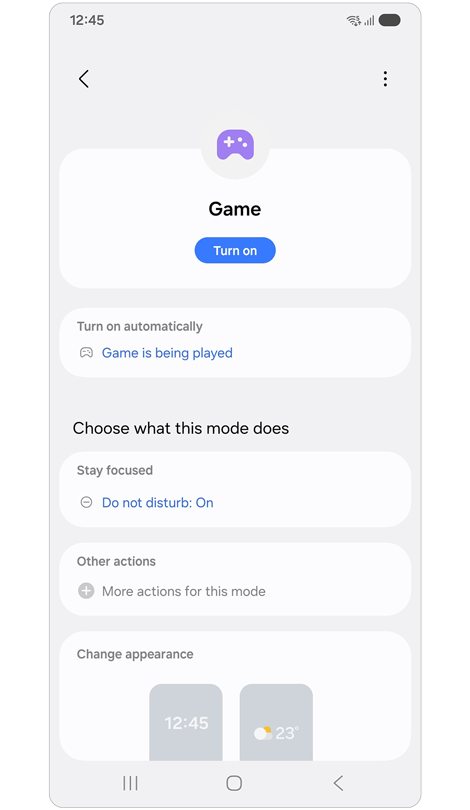
Confirm your Game mode settings. Make any changes if needed.
Note: Game routines can also be set up manually in 'Routines'.
High Performance Mode
The option to choose high performance mode, which was previously located in Game Booster Labs settings, has been moved to the top of the Game Booster settings menu.
Step 1
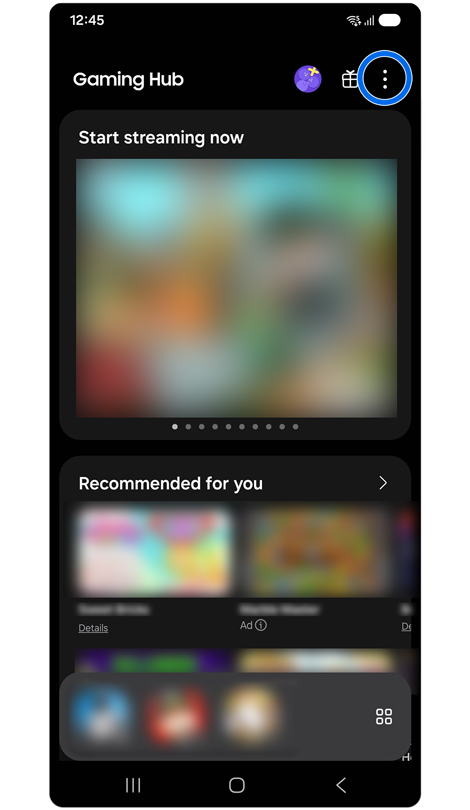
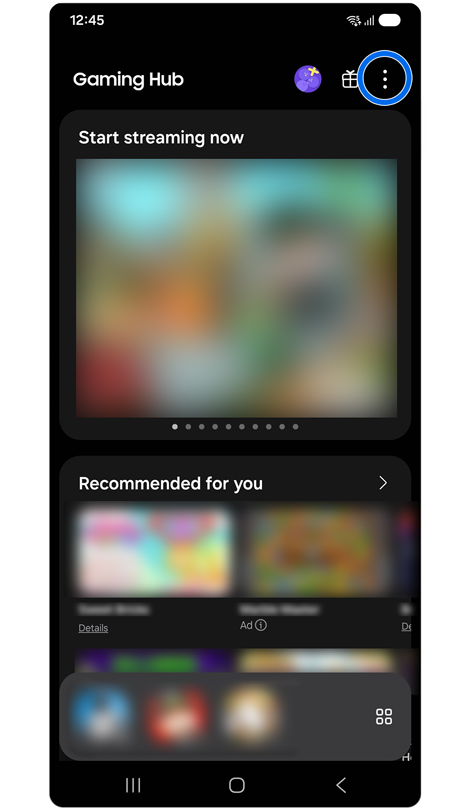
Open the Gaming Hub app > Tap the More options icon (three vertical dots) in the top right.
Step 2
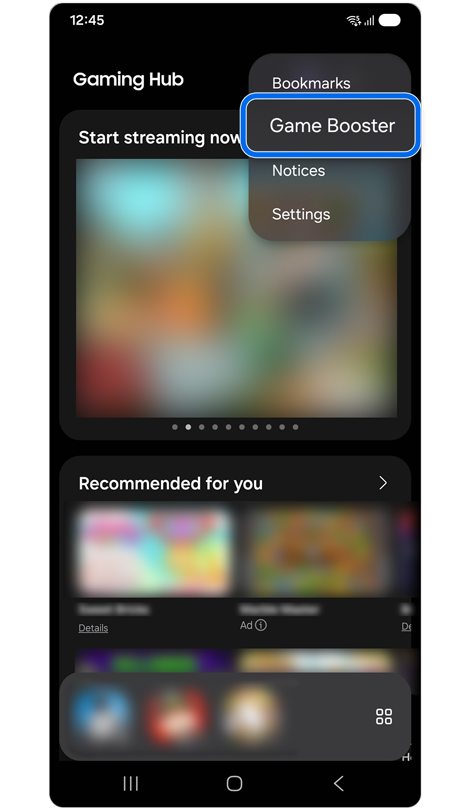
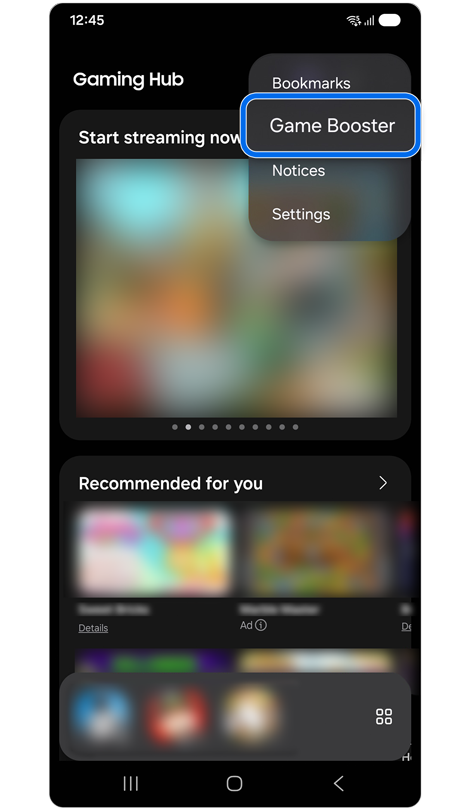
Choose Game Booster from the dropdown.
Step 3
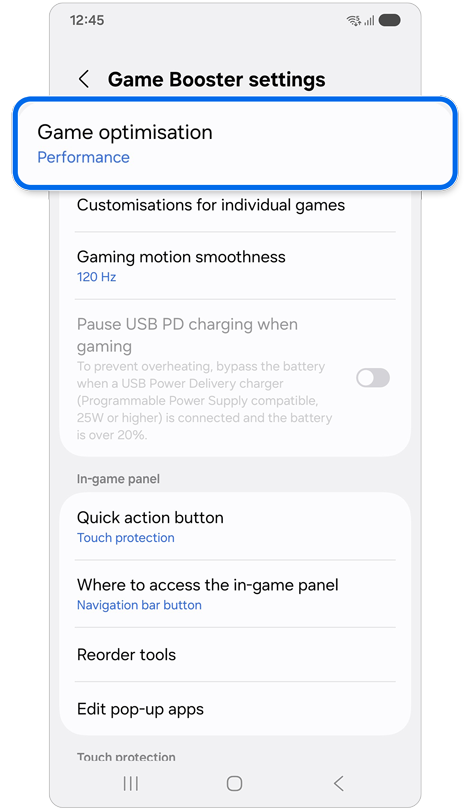
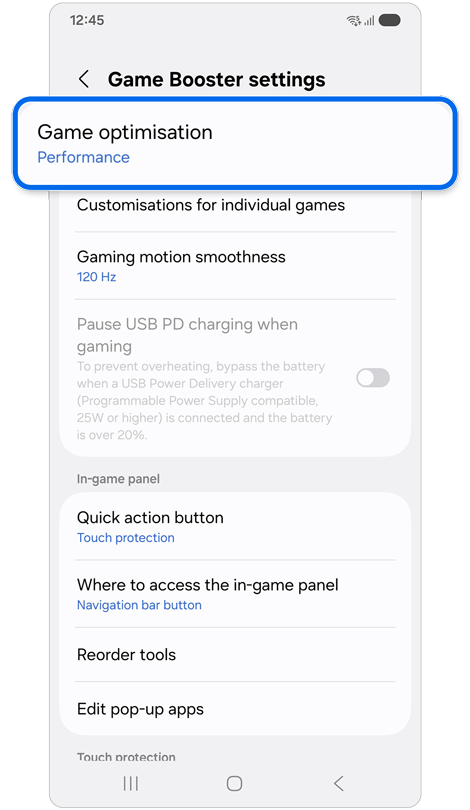
Tap on Game optimisation.
Step 4
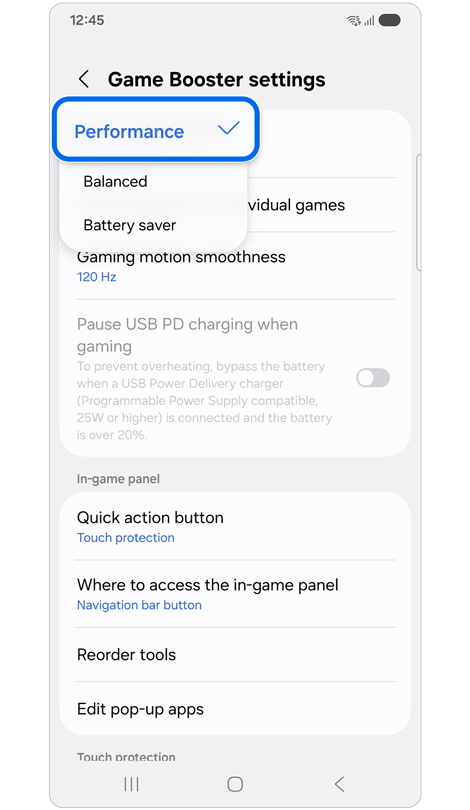
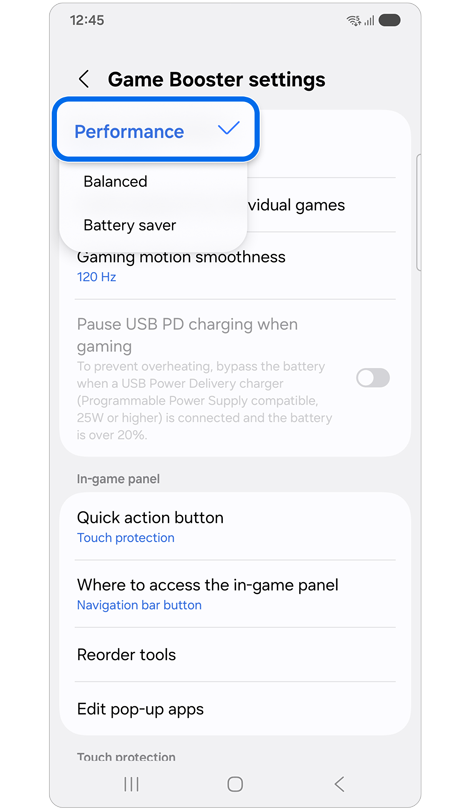
Select Performance from the dropdown options.
Customisation for Individual Games
Customisation for individual games allows you to configure the game optimisation level, frames per second (FPS), screen resolution, and frame booster settings.
Step 1
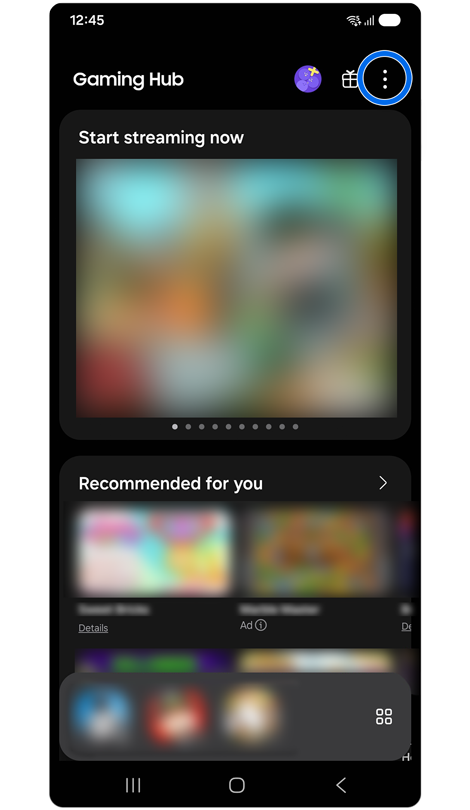
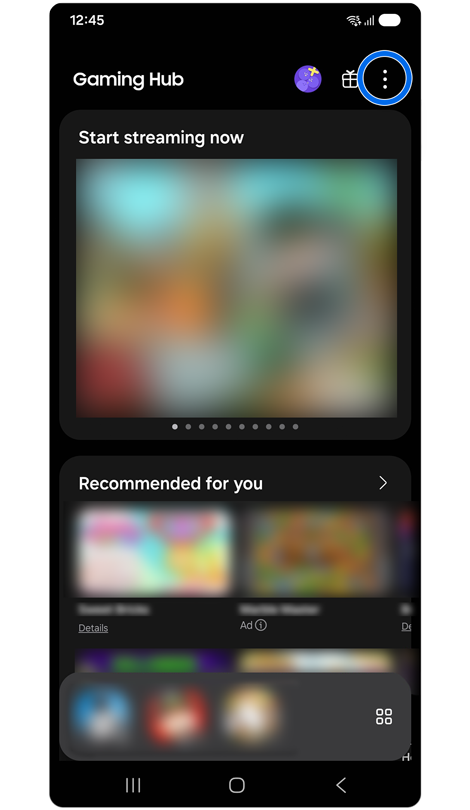
Open the Gaming Hub app > Tap the More options icon (three vertical dots).
Step 2
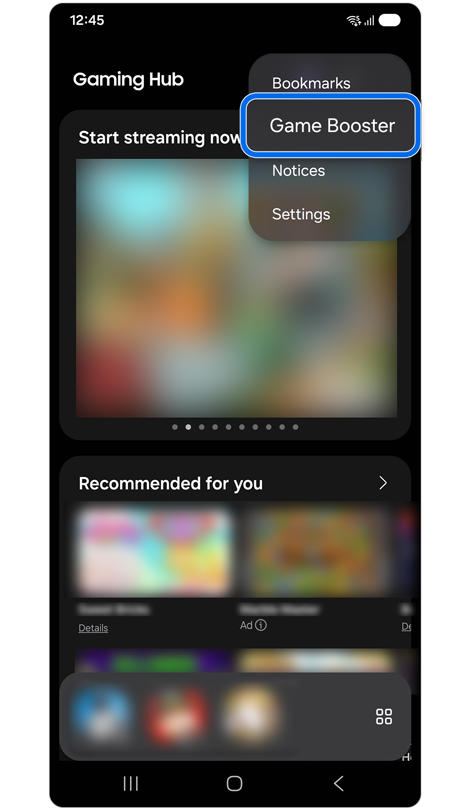
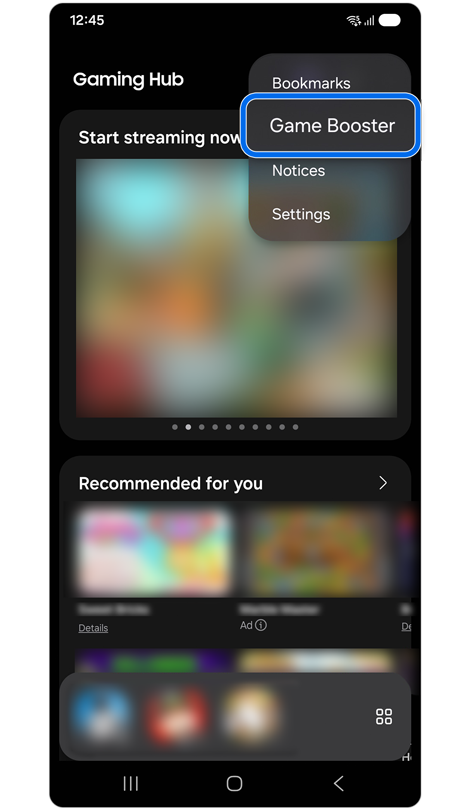
Choose Game Booster from the dropdown.
Step 3
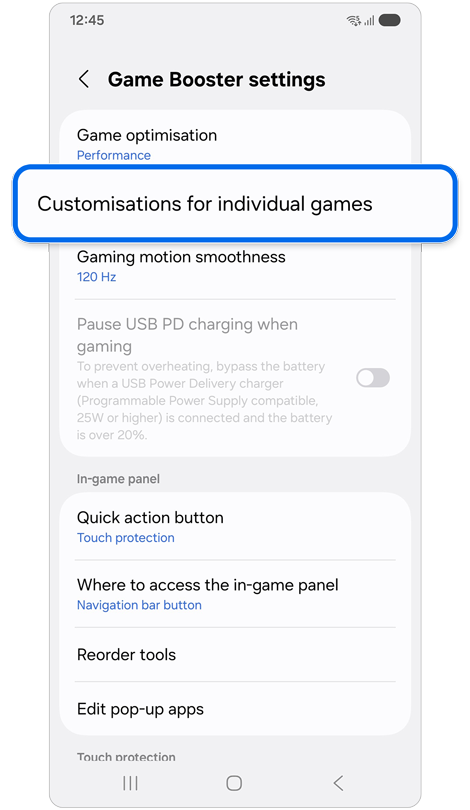
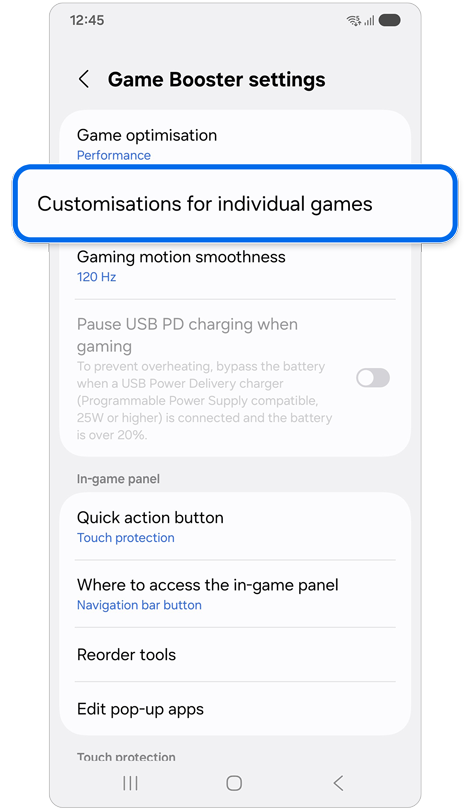
Tap Customisations for individual games.
Step 4
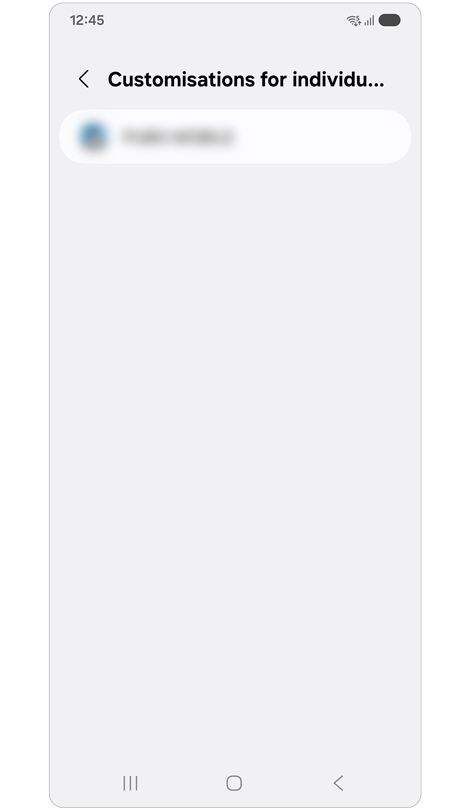
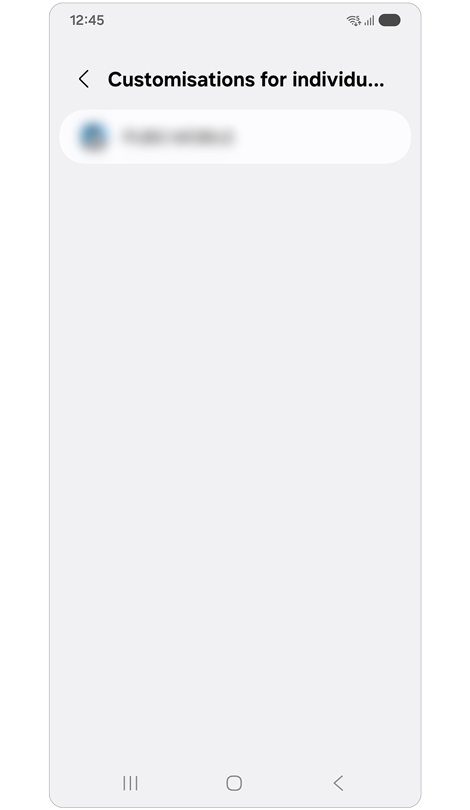
Select the game you want to customise.
Step 5
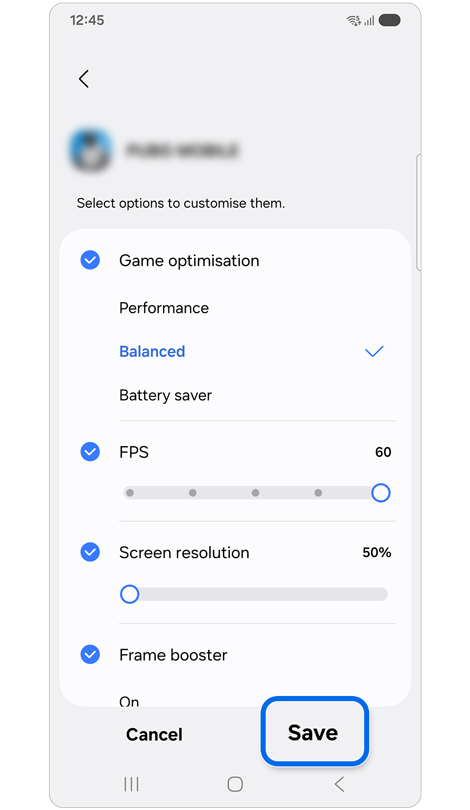
Configure your game preferences > Tap Save.
For further assistance, please contact our Chat Support.

Thank you for your feedback!
Please answer all questions.
Contact Info
Contact us
WhatsApp
![]()
![]()

